
The IDE where mistakes become lessons.
Write code, run it, and when something breaks, understand why, so the next program is better than the last. ScriptOnX is a desktop app in closed beta on macOS (Windows support is not yet release-certified).
Product tour
One bug, seven steps. Every screen here is the real product.
01 · Write Code
Write a real program.
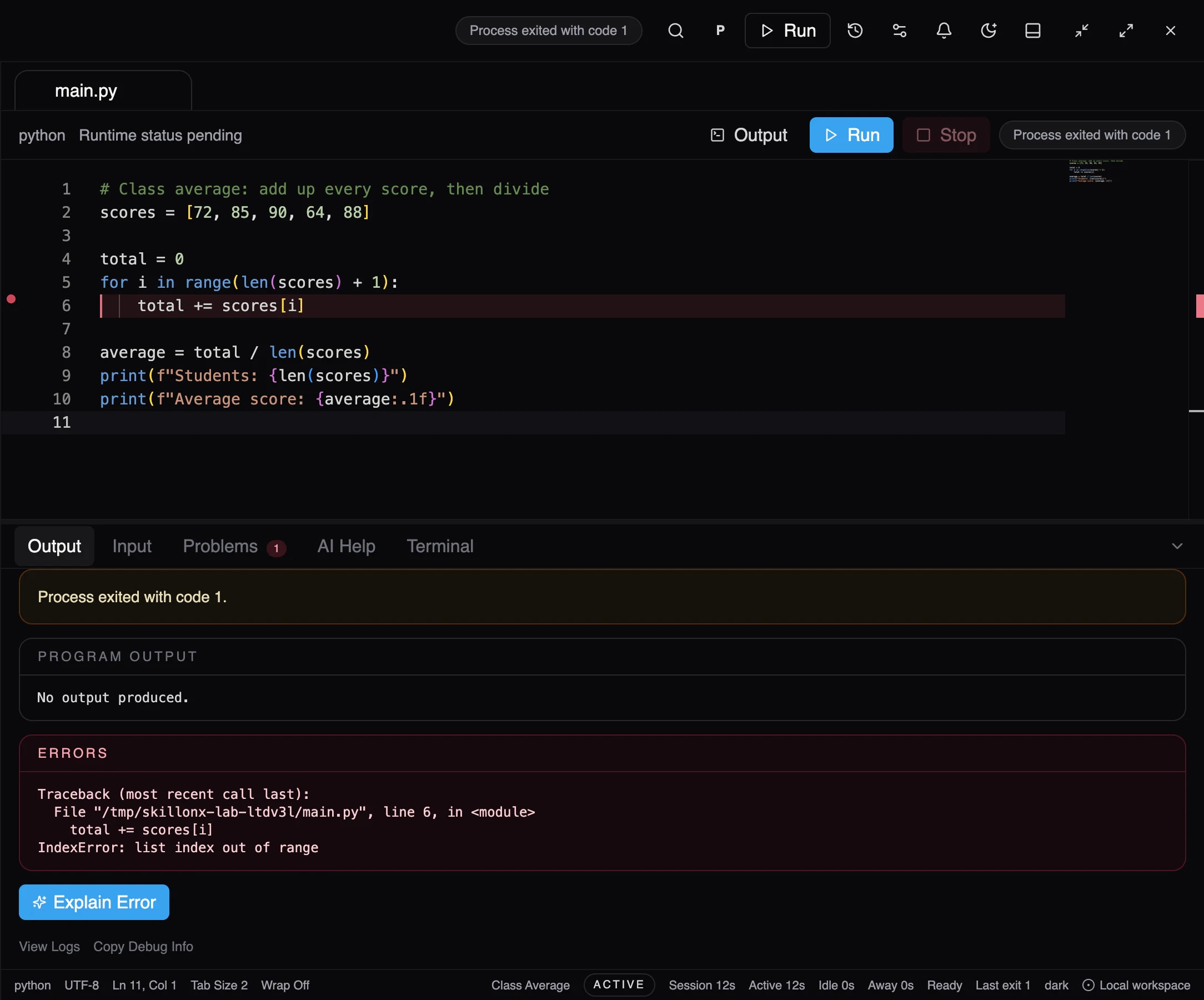
A learner writes a Python program to average a class's scores, in a full code editor. The loop on line 5 runs one step too far.
02 · Run
Run it for real.
ScriptOnX runs it on the Python interpreter on the computer. No simulation: this run exits with code 1.
03 · See the Error
See exactly what failed.
The traceback appears exactly as Python reported it, and the failing line is marked: the loop asks for a sixth score that doesn't exist.
04 · Ask ScriptOnX
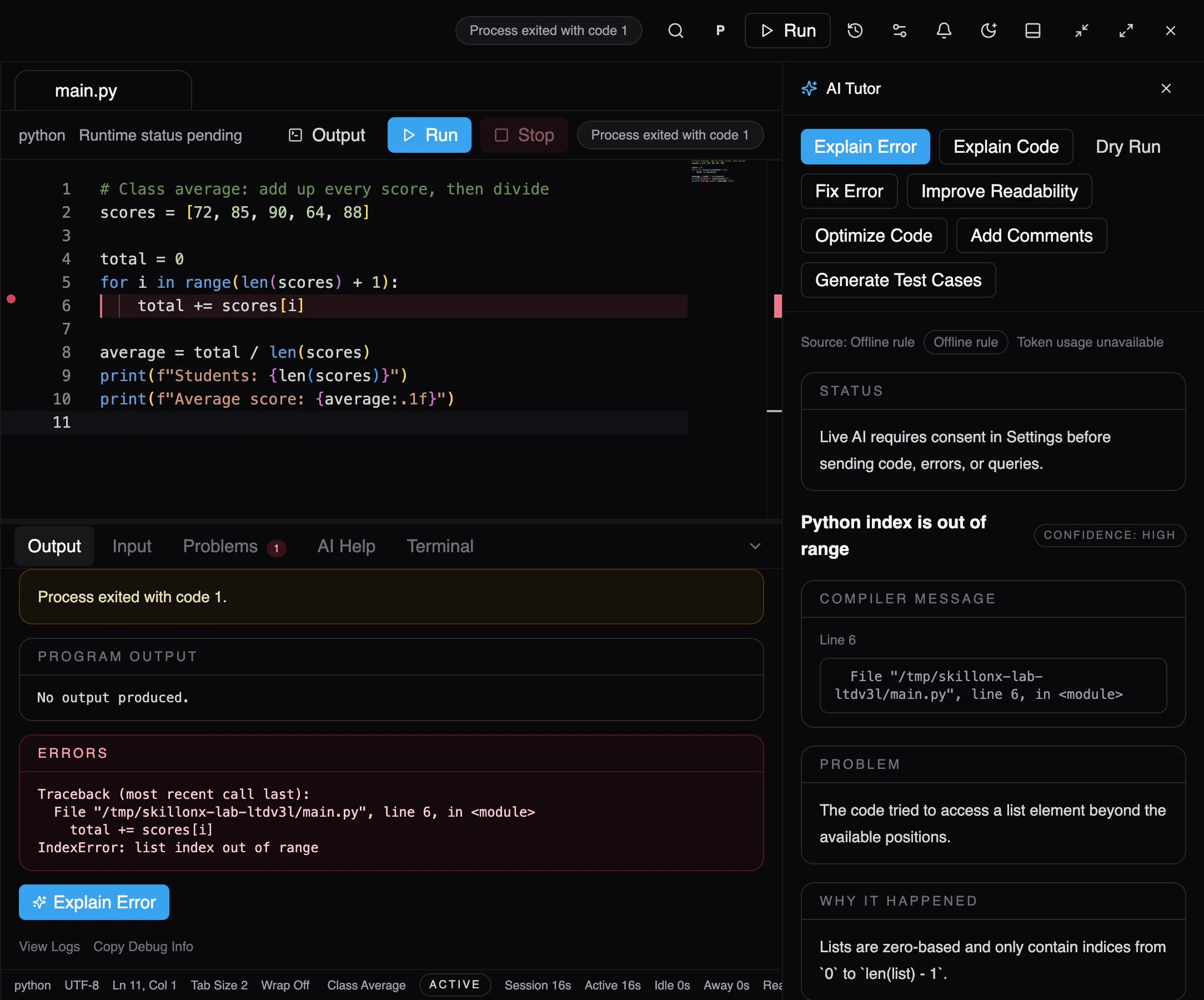
Ask, right where the error is.
One click on Explain Error. No copying code into another tab, no describing the problem from scratch.
Product screenshot · Beta 05 · Understand Why
Understand why it happened.
The explanation says what went wrong and why: list positions start at 0 and end at len(list) − 1. This one came from a built-in rule, with no internet needed.
Product screenshot · Beta 06 · Fix It
Fix it yourself.
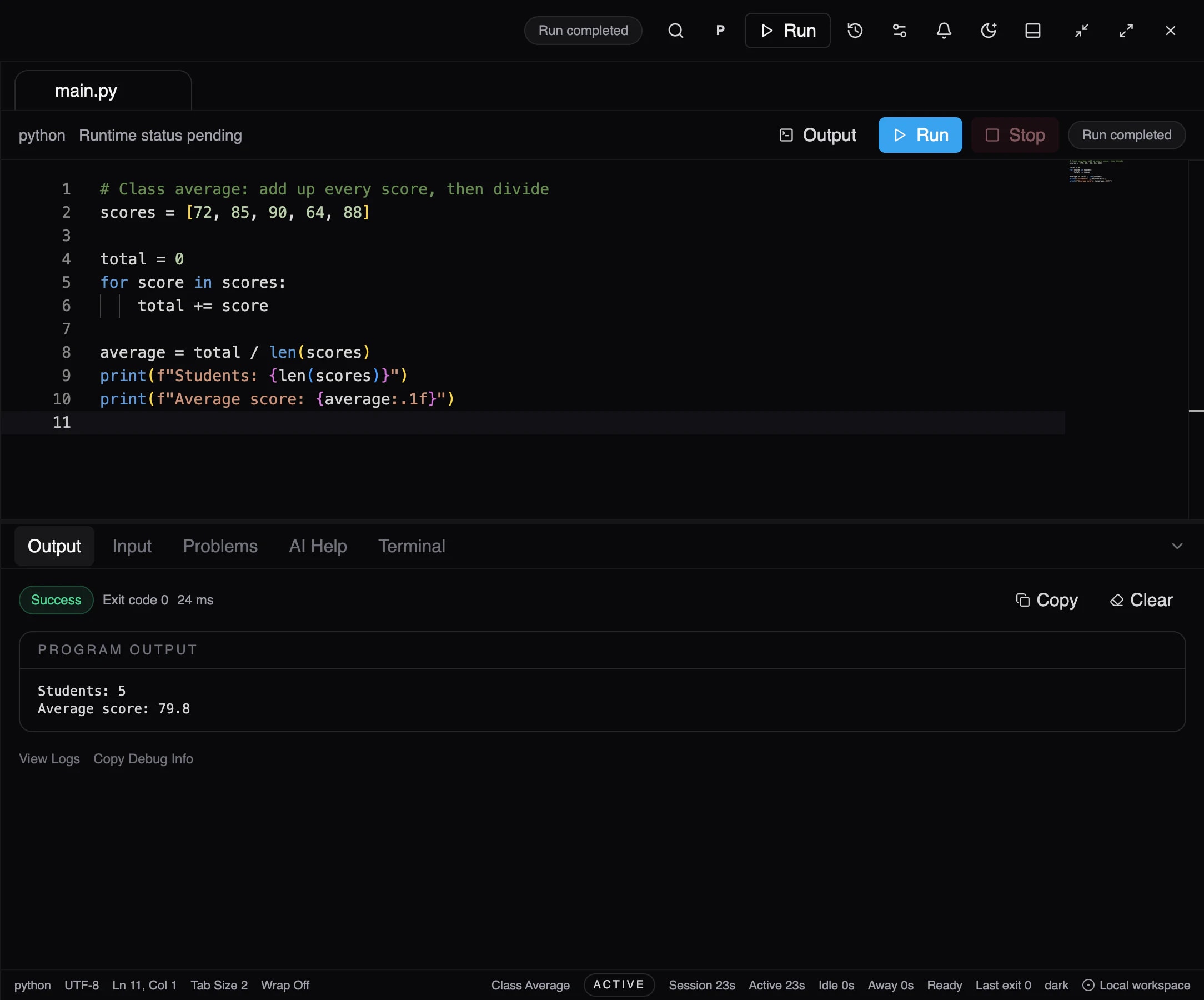
Understanding the cause, the learner rewrites the loop to go through each score directly. When Fix Error is used instead, its suggestion is shown beside the original and nothing changes until the learner applies it.
07 · Try Again
Run it again, and prove it.
Exit code 0. Students: 5. Average score: 79.8. The learner knows it works because they ran it, not because someone said so.
Product screenshot · Beta
Meet the workspace.
Everything learners need to write, run, understand and improve their code, in one place. Select any part to see what it does.
Try the experience. Pick a mistake, run it, and ask why.
Three classic beginner mistakes. Nothing is compiled here: each run is pre-written to show how ScriptOnX turns a failure into an explanation.
names = ["Asha", "Ben", "Chen"]for i in range(1, len(names) + 1): print("Hello,", names[i])Output
Press Run to execute greet.py.
Run the program first. When something goes wrong, ScriptOnX can explain it.
- Code
- Run
- Error
- Explain
- Hint
In the ScriptOnX beta, the same steps happen on real compilers and interpreters. Explanations come from built-in rules or, when switched on, an AI provider. A separate hint-only level is planned; today, learners can ask for a hint as a follow-up question.
Don't just fix my code. Teach me why it failed.
One click on a failed run explains it the same way every time. Common errors are answered by built-in rules, even offline.
- 01Compiler messageThe error exactly as reported, with its line.
- 02ProblemWhat went wrong, in plain language.
- 03Why it happenedThe rule of the language behind it.
- 04How to fixThe change to make, and why it works.
- 05Debug stepsHow to confirm the cause yourself.
- 06ConceptThe idea to revisit, when there is one.
The real product, screen by screen.
Every image here is a capture of the ScriptOnX desktop beta, using demo data. Select any screen to see it at full size.
Get started
Home
Product screenshot · Beta- What am I looking at?
- The full ScriptOnX window on its home screen, for a demo learner profile.
- Why does it matter?
- Learners pick up where they left off: the last lab is one click away.
- What should I notice?
- The ScriptOnX logo sits in the title bar, and the mark in the activity rail.
Choose a language
Product screenshot · Beta- What am I looking at?
- Starting a new program: the dialog that asks what the learner wants to learn.
- Why does it matter?
- Every new lab starts from a language the course actually uses.
- What should I notice?
- C, C++, Java, Python, JavaScript and Node.js are offered as programming tools.
Write & run
The workspace
Product screenshot · Beta- What am I looking at?
- The full window: project explorer, a Python program in the editor, its output below, and the AI Tutor on the right.
- Why does it matter?
- Writing, running and getting help happen in one window, so learners never lose their place.
- What should I notice?
- The output panel reports Success, exit code 0 and how long the run took.
A successful run
Product screenshot · Beta- What am I looking at?
- The corrected program and its real output: Students: 5, Average score: 79.8.
- Why does it matter?
- Learners confirm a fix by running it, not by trusting that it should work.
- What should I notice?
- The loop now goes through each score directly instead of counting positions.
Errors
A runtime error
Product screenshot · Beta- What am I looking at?
- The same program with an off-by-one loop, after a failed run.
- Why does it matter?
- The error is shown exactly as Python reported it, so learners learn to read real tracebacks.
- What should I notice?
- Line 6 is marked in the editor, and Problems shows a count of 1.
A C compile error
Product screenshot · Beta- What am I looking at?
- A C program that failed to compile, and the explanation of the missing semicolon.
- Why does it matter?
- Compile errors get the same treatment as runtime errors, in every runnable language.
- What should I notice?
- The compiler message keeps its line and column: line 8, column 26.
Explanations
Error and explanation, side by side
Product screenshot · Beta- What am I looking at?
- The failed run on the left; Explain Error's answer on the right.
- Why does it matter?
- Learners read the explanation while looking at the code it describes.
- What should I notice?
- The explanation shows its confidence (High) and its source.
An offline explanation
Product screenshot · Beta- What am I looking at?
- The AI Tutor panel explaining an IndexError: the compiler message, the problem and why it happened.
- Why does it matter?
- Common errors are explained by built-in rules, so help works even with no AI provider or internet.
- What should I notice?
- “Source: Offline rule”, and the note that live AI needs consent in Settings first.
Databases
Database Lab
Product screenshot · Beta- What am I looking at?
- A SQL query against a local SQLite database, with its results table.
- Why does it matter?
- Database courses use the same workspace as programming courses.
- What should I notice?
- Explain Query and Optimize Query sit beside Run.
Reports
Your activity
Product screenshot · Beta- What am I looking at?
- A learner's own report: coding time, programs run, successful and failed runs, AI help and database queries.
- Why does it matter?
- Learners can see their own effort and progress, per day, week or project.
- What should I notice?
- Reports are personal and stored on the learner's computer. These figures come from a demo profile.
What's real today. And what's next.
Animated demos on this site are scripted. Product screenshots are real. Here is exactly where each capability stands.
Usable today.
Interactive website demo
The scripted ScriptOnX workspace on this site.
In the ScriptOnX desktop beta, confirmed in the running product.
Code editor
Projects, files and tabs, with syntax highlighting, line numbers and the failing line marked after a run.
Code execution
Real programs run on the compilers and interpreters on the learner's computer, with output, exit codes and errors.
Language support
Python, C, C++, Java and JavaScript, plus SQL in Database Lab.
Error explanations
Explain Error says what went wrong and why. Common errors are explained by built-in rules, even offline.
AI Tutor
Follow-up questions, Explain Code, Dry Run and Fix Error. Needs an AI provider switched on, with the learner's consent.
Database Lab
SQL against a local SQLite database. MySQL and MongoDB connections in testing.
Learning environments
Checks that the compilers and tools a course needs are installed and working. One-click installs are in testing.
Activity reports
A learner's own coding time, runs, failures, AI help and database use, per project. Stored on the learner's computer.
Planned, not yet usable.
Hint-only help
A dedicated hint level that points the way without revealing the fix. Today, learners ask for hints as follow-up questions.
Assistance levels
Faculty-set levels from Explain to Solve. The beta offers individual AI actions instead.
Accounts & sign-in
Student, faculty and institution accounts. The beta uses a local learner profile.
Practice library
Exercises with test cases across the curriculum.
Assignments
Faculty-set coding assignments with deadlines, attempts and submissions.
Visual debugging
Variable state, stepping, call stack and memory views.
Progress & mastery
Concept mastery, streaks and course progress.
Faculty tools
Exercises, test cases, AI controls and review.
Learning analytics
Class-wide visibility into where students struggle.
Institution management
Labs, cohorts and institution-level reporting.
Questions, answered plainly.
Is ScriptOnX an online IDE?
No. ScriptOnX is a desktop app in closed beta on macOS (Windows support is not yet release-certified). Programs run on the learner's own computer, on real compilers and interpreters. The animated workspace on this website is a scripted demo.
Does ScriptOnX write code for students?
Its focus is explaining, not answering. Explain Error and Explain Code describe what happened and why. Fix Error can propose corrected code, but it's shown beside the original and nothing changes until the learner applies it. Controls that let faculty limit this are planned.
How does Explain with AI work?
After a failed run, Explain Error reads the error, the failing line and the code. Common errors are matched by built-in rules that work offline. With an AI provider switched on, and the learner's consent, the AI Tutor explains other errors and answers follow-up questions. Each explanation is labelled with where it came from.
Which languages are supported?
Python, C, C++, Java and JavaScript run in the ScriptOnX desktop beta, plus SQL in Database Lab. TypeScript and HTML/CSS are planned.
Can colleges use ScriptOnX in programming labs?
That's what it's being built for. ScriptOnX is a desktop app in closed beta on macOS (Windows support is not yet release-certified). Its learning environments check that each course's tools are installed and working; one-click installs are still in testing. Faculty tools, assignments and class analytics are planned. Institutions can request a demo to see the beta and discuss a pilot.
Can faculty control how much AI help students get?
Not yet. Faculty-set assistance levels, from Explain to Solve, are planned. Today, AI features must be switched on in Settings, and the learner has to consent before code is sent to an AI provider.
Do students need to install a compiler?
For now, yes. ScriptOnX runs code on the real compilers and interpreters installed on the computer. Its learning environments show which of them are installed and working. One-click installs are in testing in the beta.
See your next error differently.